Sources
Learn how to train your April agent with files, website content, text snippets, and Q&A pairs.
Sources are the knowledge base your agent uses to answer questions. The more relevant content you add, the better your agent performs.
Source Types
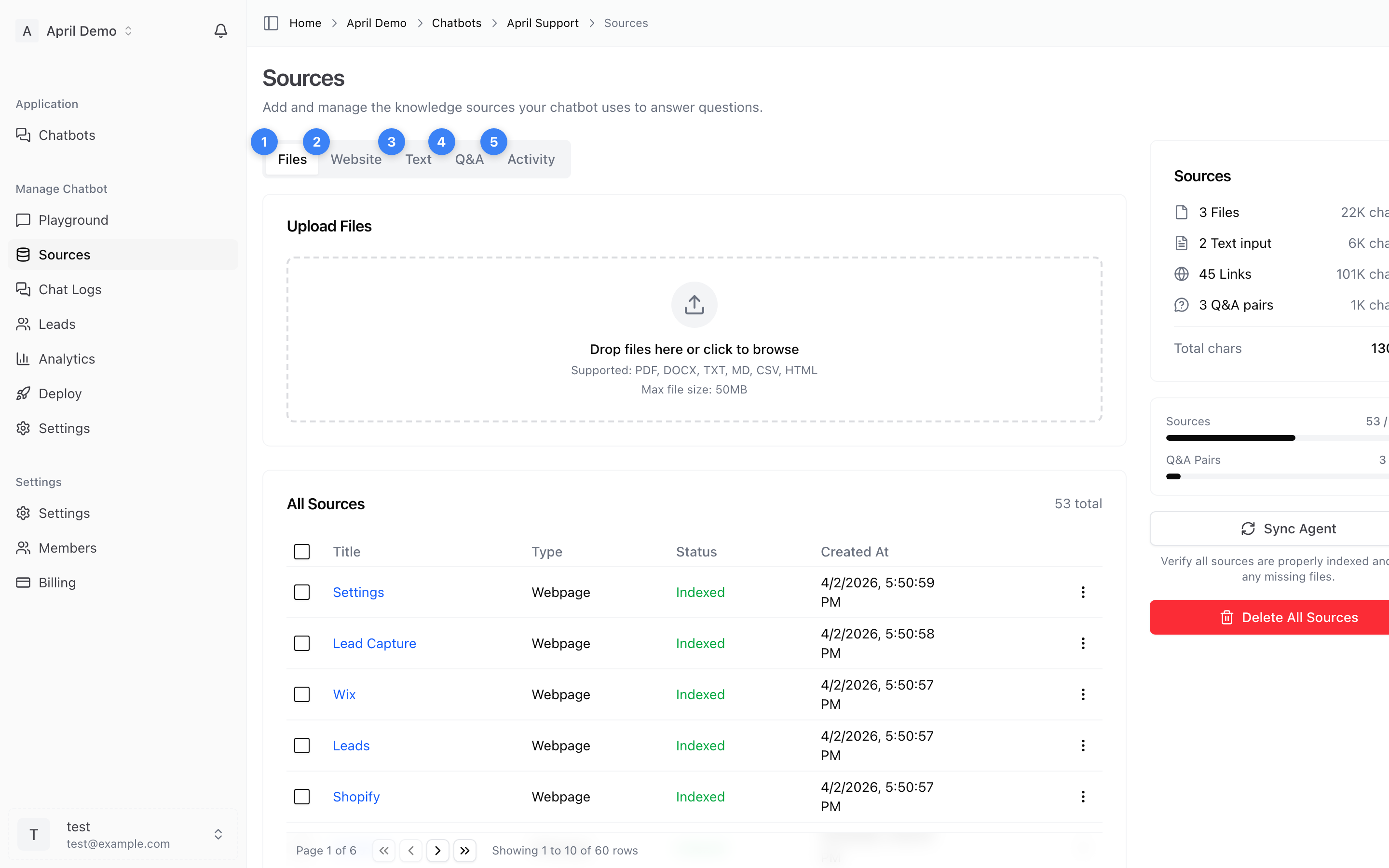
Files
Upload documents directly to train your agent.
Supported formats:
- PDF (.pdf)
- Word (.doc, .docx)
- Text (.txt)
- CSV (.csv)
How to add files:
- Go to your agent's Sources tab
- Click the Files section
- Drag and drop files or click to browse
- Files are automatically processed and indexed
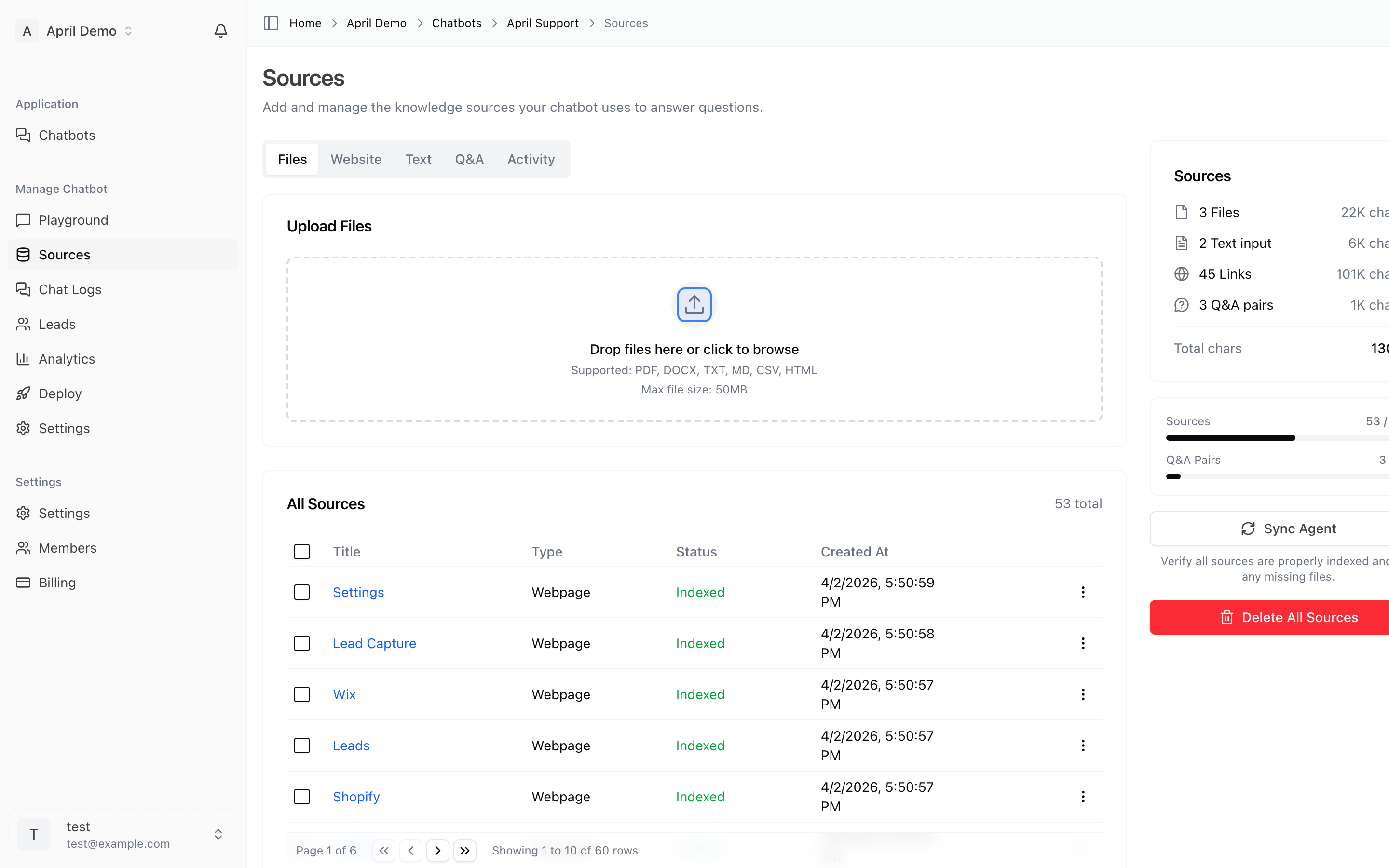
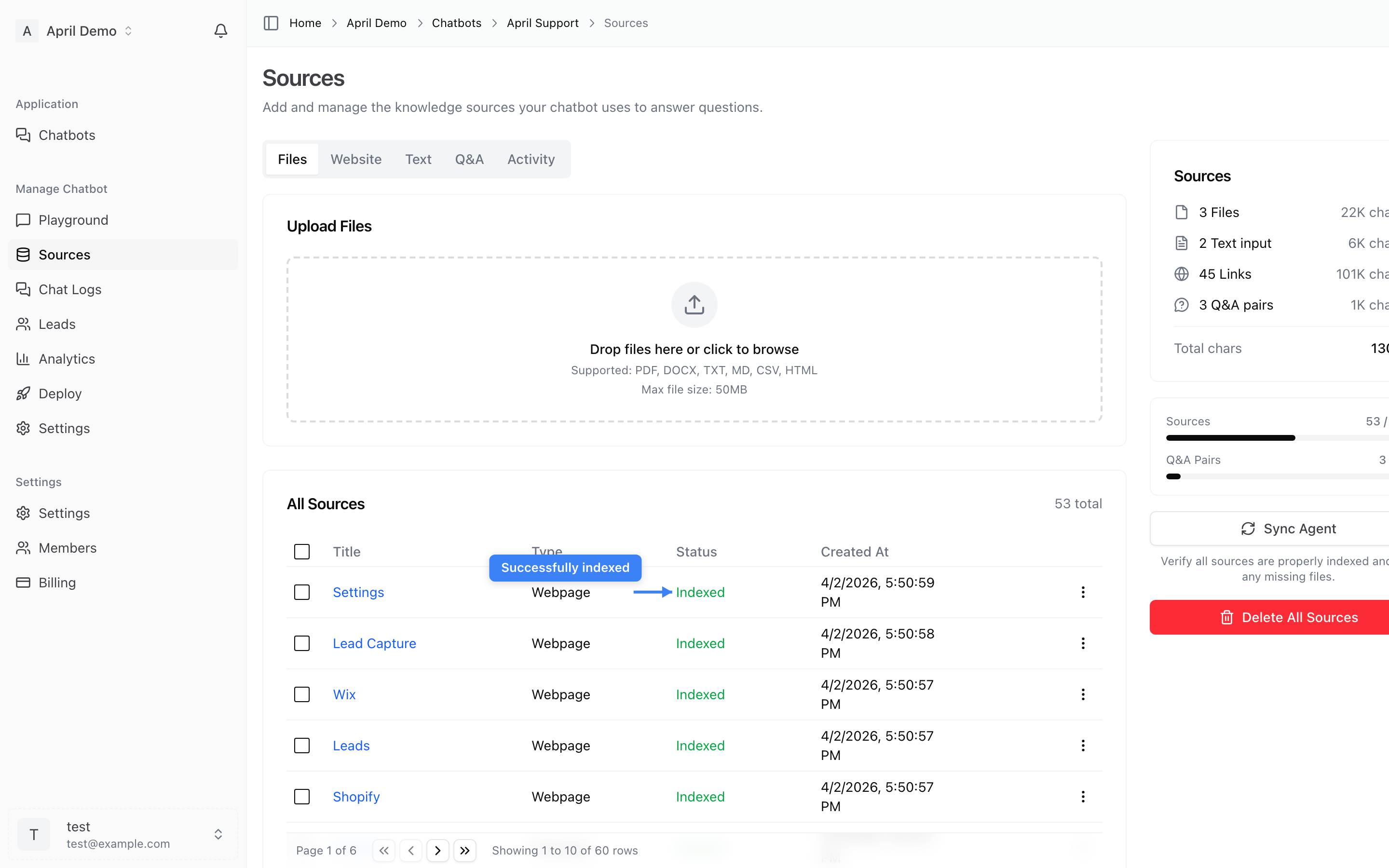
Once uploaded, your file will show a Processing status while it's being indexed:
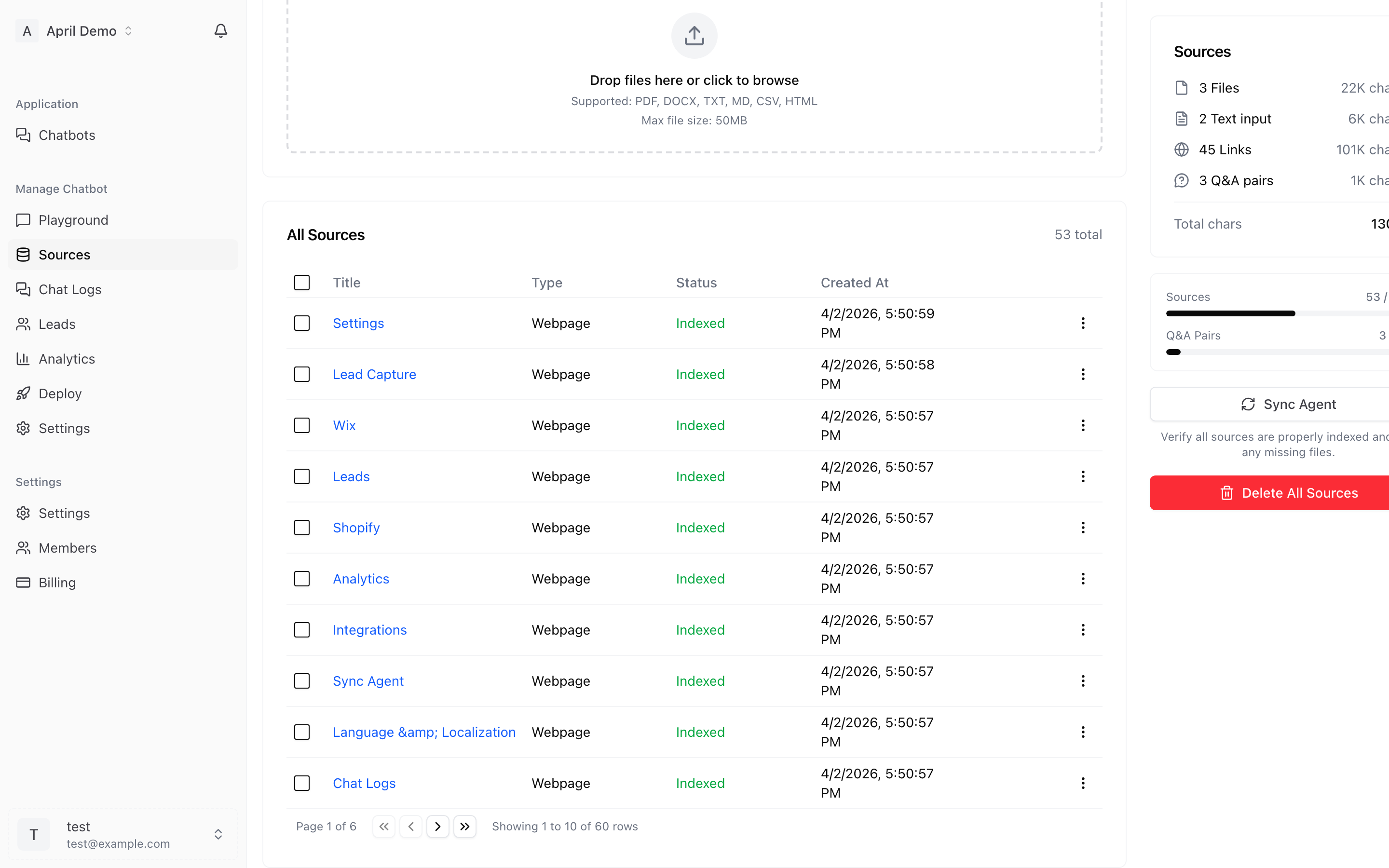
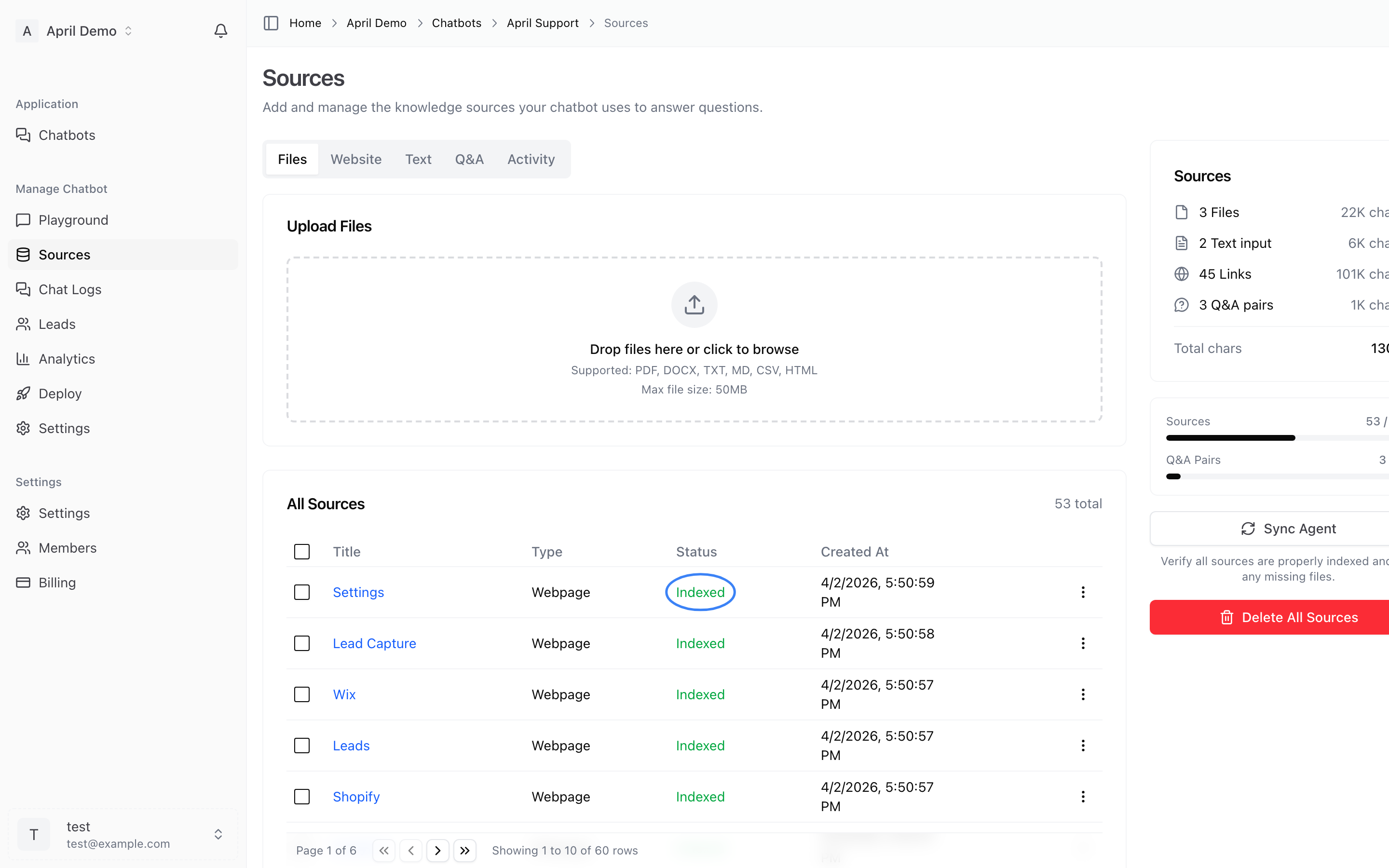
When complete, the status changes to Indexed — your agent can now use this content:
Tips:
- Remove password-protected PDFs before uploading
- Ensure documents contain searchable text (not scanned images)
- Larger files may take longer to process
Website Crawling
Automatically crawl and index your website content.
How to crawl a website:
- Go to the Website section in Sources
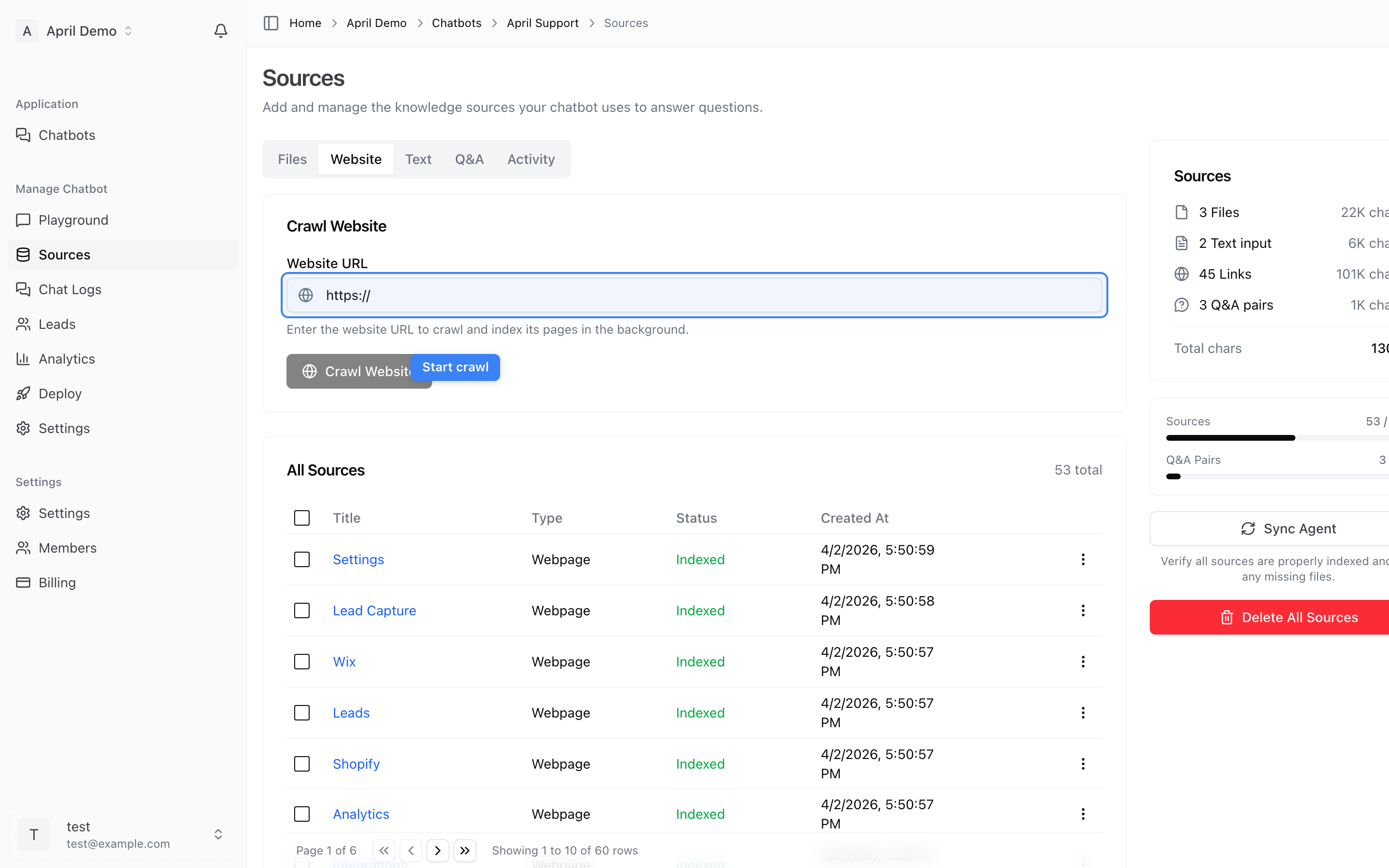
- Enter your website URL
- Optionally add specific sitemap URLs for better coverage
- Click Start Crawl
Crawl options:
- Standard crawl — Fetches pages directly via HTTP. Fast and reliable for most websites.
- Advanced crawl — Uses browser rendering for JavaScript-heavy sites (SPAs, React apps). Handles dynamic content that standard crawling might miss.
What happens during a crawl:
- April discovers pages from your sitemap
- Each page is fetched, parsed, and stored
- Content is indexed for your agent to use
- Progress is shown in real time — you can navigate away and come back
Re-crawling: Run a new crawl anytime to pick up content changes. April detects unchanged pages and skips them automatically, so re-crawls are fast.
Text Snippets
Add custom text content directly.
How to add text:
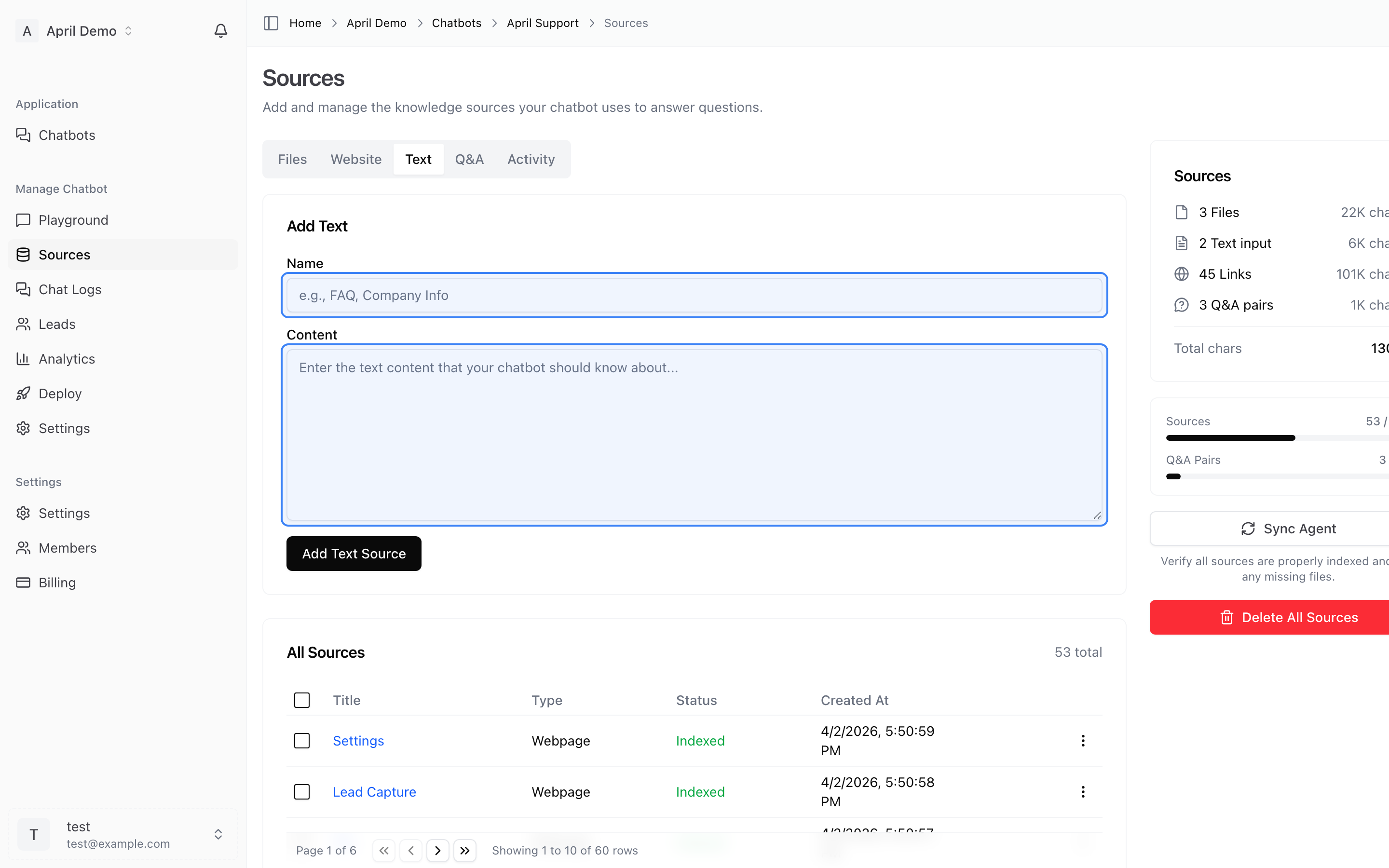
- Go to the Text section in Sources
- Enter a title for the snippet
- Paste or type your content
- Click Add Source
Best for:
- Company information not published on your website
- Internal policies or procedures
- Custom instructions
- Temporary announcements or promotions
Q&A Pairs
Define exact question-and-answer pairs for precise responses.
How to add Q&A pairs:
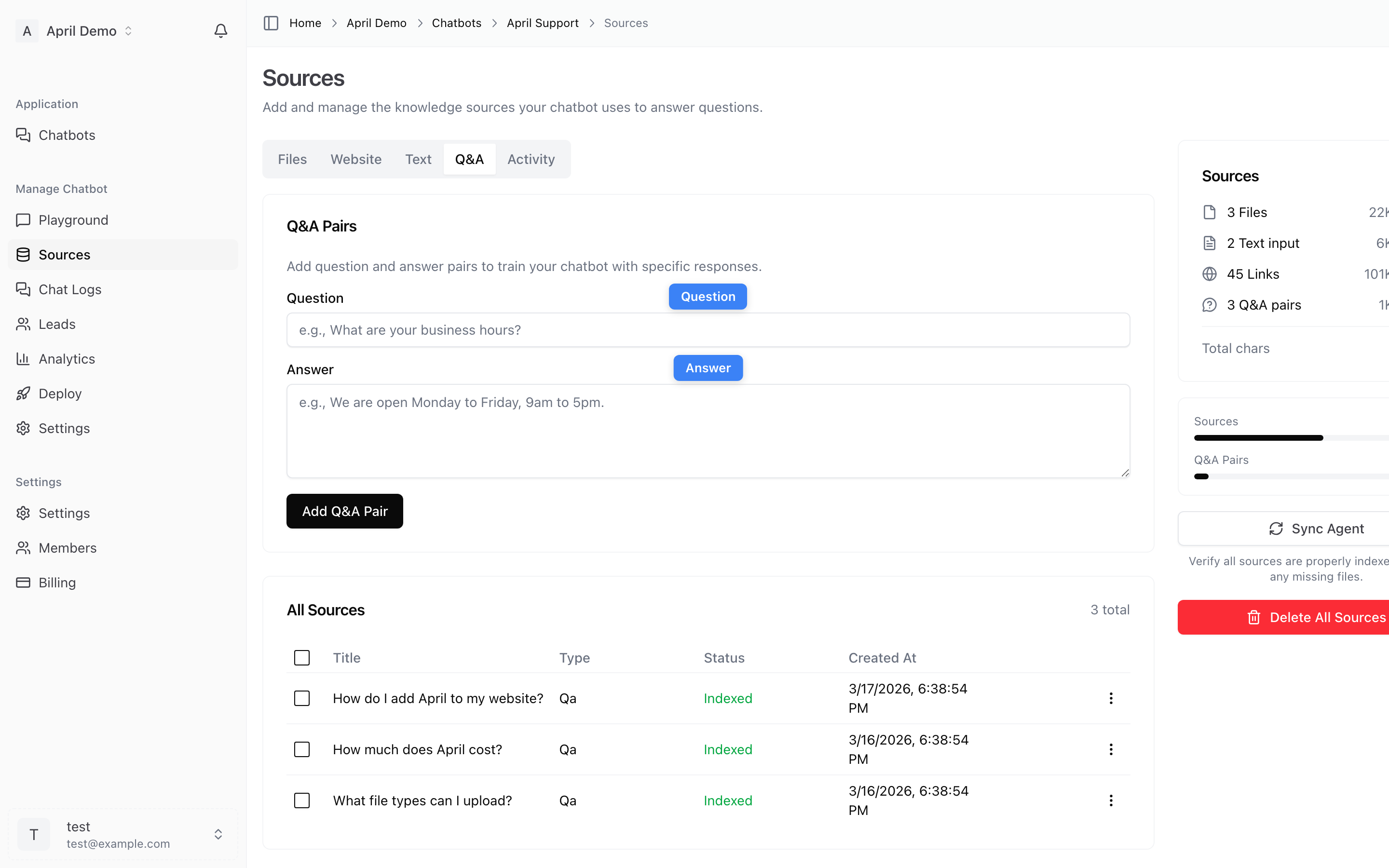
- Go to the Q&A section in Sources
- Enter the question customers might ask
- Enter the exact answer you want your agent to give
- Click Add Source
Best for:
- Pricing questions with exact figures
- Policy-related questions requiring specific wording
- Common questions where consistency matters
- Complex questions that require curated answers
Managing Sources
Source Status
Each source has a status indicator:
- Indexed — Successfully processed and available to your agent
- Processing — Currently being indexed
- Failed — Could not be processed (check the error message)
- Stored — Content saved but not yet indexed
Removing Sources
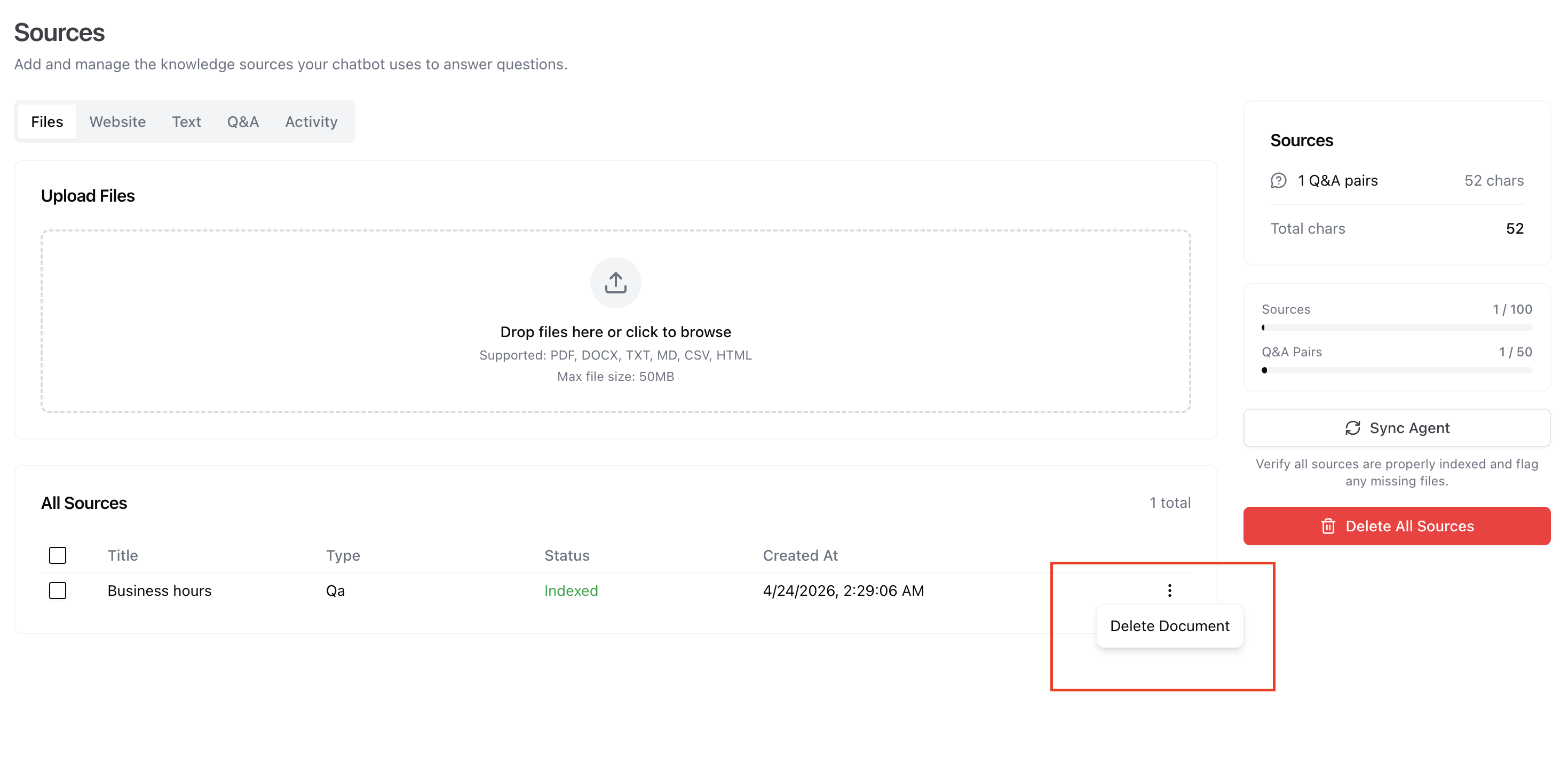
To remove a source, hover over it and click the delete button. The content will be removed from your agent's knowledge base.
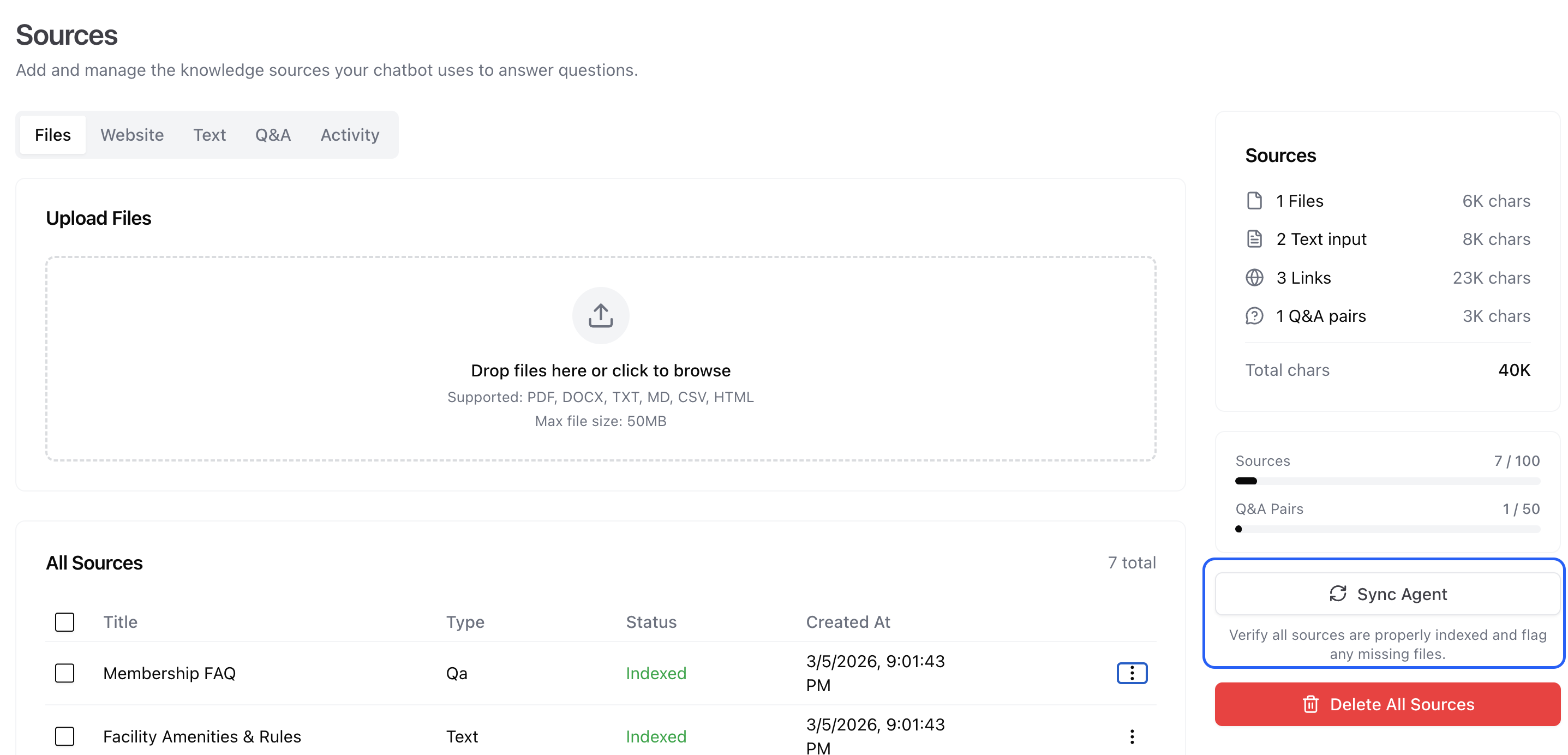
You can retrain your agent after removing sources by clicking the Retrain button in the sidebar:
Activity Tab
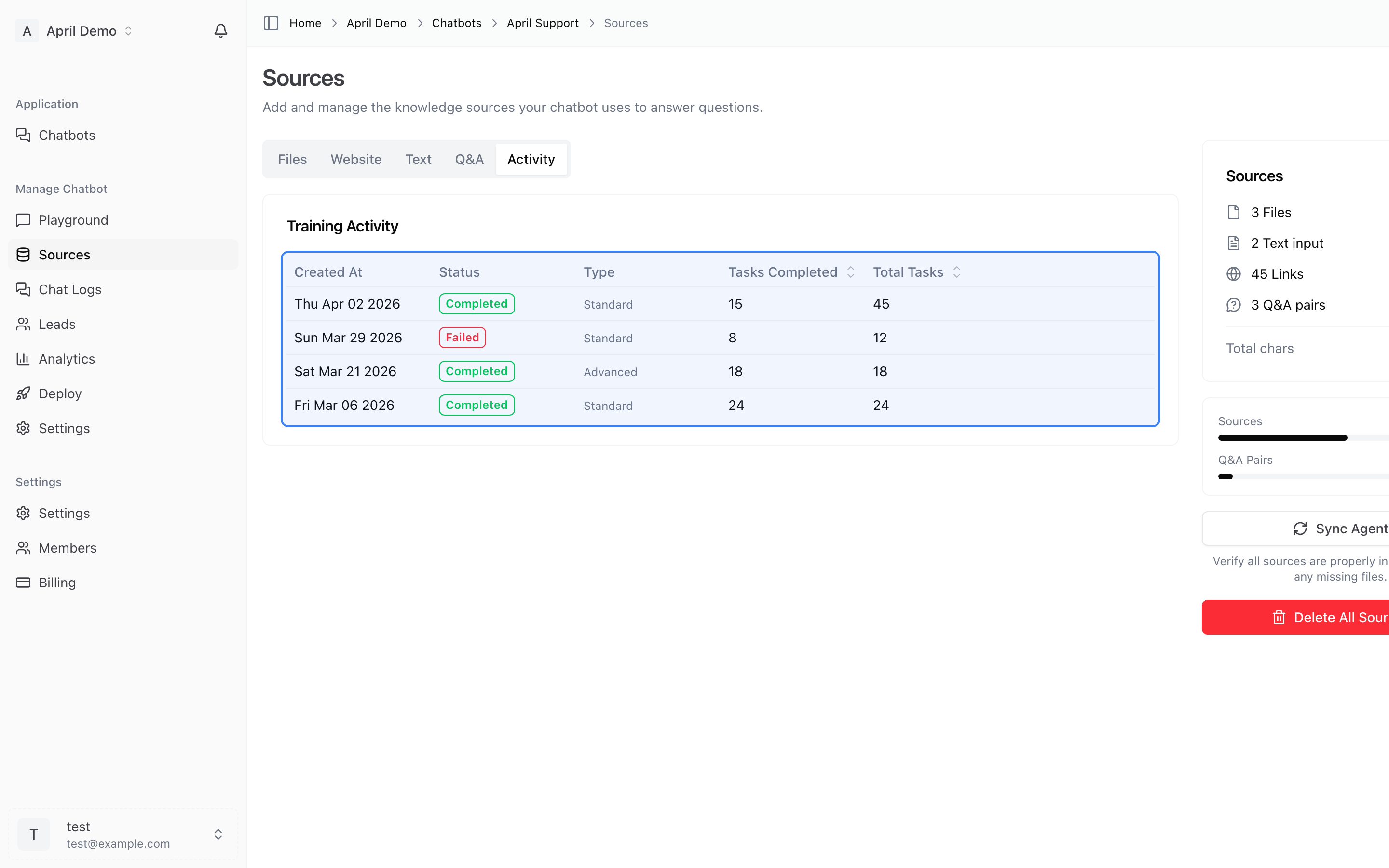
The Activity tab shows your crawl job history with status, progress, and timestamps. Use this to monitor ongoing crawls or review past jobs.